Monday, 13 April 2020

Page file Memory issue in Sharepoint


The System log is complaining about a low virtual memory condition. And I can now understand why Naren was seeing not much increase in Physical memory at the time of the issue.

Since this outofmemory message is shown for various process including non-SharePoint , is there any difference between the servers in terms of Windows Page File Limit?
Can you please check the below on all the Servers?

1. Run sysdm.cpl
2.Go to Advanced
3.Select Settings under Performance
4.Go to Advanced (again)

Thursday, 5 March 2020

User Profile Synchronization - Switching from FIM to AD

SharePoint 2013 offers multiple ways to import user accounts to the User Profile Service Application (UPSA). Our formerly best friend, the Forefront Identity Manager (FIM), which was introduced in SharePoint 2010, is still the default option to get this job done in SharePoint 2013. Good news for all of you folks who never liked this one: the simple LDAP querying AD import option (that was used in SharePoint 2007) is available again. Spencer wrote a really good article about AD Import for all of those who are not familiar with it.
Most customers are typically still setting up and operate their SharePoint farms using FIM. Eventually some are switching to the AD Import mode later. Those customers did not find any guidance on this task, that is the reason why I am writing this article.
There might be multiple reasons for customers to make the decision to move away from FIM. Performance and reliability are probably the most important ones, but there could be other reasons as well. Switching to AD Import might also be a good idea as a preparation for SharePoint 2016, that no longer contains FIM.
This article is supposed to give you a further insight and configuration guidance as well as the possibility to understand the differences between FIM and AD Import.

General Understanding and Comparison

The most important message right upfront: The light-weight Active Directory Import option is having limitations. Make sure you are aware of the differences before changing a productive FIM operated synced User Profile Service Application.
The most important facts (there are much more in total) at a glance:
  • AD Import is one way only (Import)
  • Replicating Directory Changes permissions are still necessary for to the account used within the sync connection
  • User Profile Sync DB is no longer used. Existing FIM Sync Connection information are stored in the Sync DB. This needs your urgent attention in the need of manually recreating sync connections and configuration (sync filters, profile property mappings, etc). I’ll explain this later in detail
  • Any additional data coming from line of business systems (via BDC) cannot be imported using AD Import. FIM is required for such Scenarios

Comparison matrix
FIM - AD Import Comparison Matrix

How to switch to AD Import – Step by Step

1. Preparation: Do some important reading upfront
Before you switch from an existing SharePoint Profile Synchronization (FIM) to the lightweight AD Import mode, you should understand that these two models are not doing the same things. AD Import is having limitations. Carefully read this article and carefully read TechNet documentation. I did see customers skipping this step and they caused themselves extra work and trouble.
Read and understand:

2. Preparation: Create a documentation of current settings
This step is crucial.
Skipping this one might get you in big trouble. Make sure you create a current documentation of all existing:
  • Sync Import Connections
    • Fully Qualified Domain Name
    • Sync Service Account
    • OUs to Sync
    • Sync Port
    • SSL yes/no
  • Sync Import Filters
  • Profile Property Mappings
  • User Profile Import Service Account credentials

3. Modify SharePoint Service Monitoring
If any monitoring software is surveilling the Forefront Identity Manager Synchronization Service (FIMSynchronizationService), which is running in FIM / SharePoint Profile Synchronization mode, you should disable this monitoring rule before touching anything. Changing the sync to AD Import is going to stop this service. This would cause monitoring software to create alerts about stopped services.

4. Change/Configure Synchronization Settings
This is where we are finally changing the import behavior. In Central Administration (User Profile Service Application) you pick the Configure Synchronization Settings and change the Synchronization Options to Use SharePoint Active Directory Import.
After applying this setting, following things are happening within seconds:
  • The Windows Forefront Identity Manager Synchronization Service (FIMSynchronizationService) is changing its state from started to stopped and is disabled
  • Sync Connection list in the UPSA is now empty, due to the fact, that the existing FIM sync connections are stored within the UPSA sync database, which is no longer in use
  • Any Profile Property Mappings that have been in place must be reconfigured. Again, this is because the UPSA Sync DB is no longer in use.
  • The timer job that is triggering the sync jobs is enabled: ([Name-of-UPSA] – User Profile ActiveDirectory Import Job)

5. Create Sync Connection
With switching from FIM to Active Directory Import Sync Connection information must be created again. So go ahead, grab your documentation and set up all of your required sync connections.

6. Create Import Filters
Apply all import filters that you need for each sync connection. This must be done using LDAP queries. This is something, that is different than it used to be using FIM. You are not using the GUI based filter builder, you need to specify what you want to import using a LDAP query. Benefit from that is that you have more control and possibilities, because any valid LDAP query could be used.
Be aware LDAP filters in AD Import mode are “include” filters, so you must define which accounts should be imported.
Example LDAP User Filters
  • Default user filter:
    (&(objectCategory=Person)(objectClass=User))
  • Exclude accounts with no email address and disabled accounts:
    (&(objectCategory=Person)(objectClass=User)(!(userAccountControl:1.2.840.113556.1.4.803:=2))(mail=*))
  • Exclude disabled accounts:
    (&(objectCategory=Person)(objectClass=user)(!userAccountControl:1.2.840.113556.1.4.803:=2))
  • Exclude accounts with passwords set to expire:
    (&(objectCategory=Person)(objectClass=user)(!userAccountControl=65536))
  • Include only the accounts with valid email addresses
    (&(objectCategory=Person)(objectClass=User)(mail=*com)
  • Include only the accounts that are part of the LocationXY organizational unit
    (&(objectCategory=Person)(objectClass=User)(memberof:1.2.840.113556.1.4.1941:=(CN=AuthenticatedUsers,OU=LocationXY,DC=domain,DC=local)))
  • Exclude accounts that don’t have a first name
    (&(objectCategory=Person)(objectClass=User)(!(userAccountControl:1.2.840.113556.1.4.803:=2))(!(!givenName=*)))
  • Exclude all service accounts (Accounts must have a valid title naming convention)
    (&(objectCategory=Person)(objectClass=User)(!(title=*Service Account*)))

7. Create Profile Property Mappings
After sync connections are created and possible filtering is in place you should reconfigure any previous existing AD profile property mappings.
Example on how mappings look in FIM, before switching to AD Import mode:
FIM User Profile Property Mappings
All previously existing property mappings will be missing after switching to AD Import:
AD Import User Profile Property Mappings
To create profile property mappings navigate to the UPSA and to Manage User Properties. Select the property to modify and click on Edit in the context menu.
Be aware, that the GUI components are looking slightly different than they do using FIM. You have to explicitly enter the AD attribute name, you cannot choose existing attributes from the formerly existing drop down menu. Do not wonder about this. It’s not a bug it’s a feature 
How property mapping is looking while using FIM:
FIM Import Mapping
How to create a property mapping for AD Import
Create Import Mapping in AD Import
Also be aware of following limitations:
“We cannot map AD attributes to ‘system’ SharePoint Profile properties. These are the guys whose name begins with the SPS- prefix. We also cannot map two different attributes to the same profile property. We cannot do cross string type mappings (a value string attribute to a multi value string property or vice versa). “

“You cannot add multiple mappings or edit a mapping. To change mapping settings for a property, you must first remove the existing mapping, and then create a new mapping.”

8. Disable the daily FIM Synchronization Timer Job
After switching to AD Import a new sync schedule / timer job is in place. Unfortunately, the timer job that took care about the daily FIM synchronization is still enabled ([Name-of-UPSA] – User Profile Incremental Synchronization). This job obviously causes errors, because there is no more FIM sync service running, that could be triggered. This is the reason why you must disable the timer job manually to prevent this timer job to fail daily what would result in Windows Event log errors:
Log Name: Application
Source: Microsoft-SharePoint Products-SharePoint Foundation
Event ID: 6398
Task Category: Timer
Level: Critical
User: DOMAINFarmaccount
Computer: SERVER.DOMAIN.COM
Description:
The Execute method of job definition Microsoft.Office.Server.UserProfiles.UserProfileImportJob (ID 12413dce-9263-48bb-8fc2-ed6d71a920cb) threw an exception. More information is included below.
Operation is not valid due to the current state of the object.
Disable the timer job to prevent running into this trap:
Disable FIM Import Timer Job

9. Take care about AD accounts missing from import
This is a known issue using AD Import. To make a long story short: Any accounts that are disabled or deleted in AD and therefor are not imported, are not properly handled by AD Import. FIM could pick up these missing accounts and flag them properly, later timer jobs would delete the accounts from SharePoint. This process is not working using AD Import.
You should know this limitation before changing the sync mode and discuss if the known workarounds can be applied on your system.
Please refer to the blog article that is describing the behavior in detail: SharePoint 2013 : ADImport is not cleaning up User Profiles in SharePoint whose AD Accounts are disabled

Final Note

I hope this article helps you achieving the shift from FIM to AD Import.
Please share your experiences in the comments. Any feedback or additions for this post is highly welcome.
Thank you for rating this article if you liked it or it was helpful for you.

Monday, 10 February 2020

Migrate a Reporting Services Installation (SharePoint Mode)

https://docs.microsoft.com/en-us/sql/reporting-services/install-windows/migrate-a-reporting-services-installation-sharepoint-mode?view=sql-server-2016

https://docs.microsoft.com/en-us/sql/reporting-services/report-server-sharepoint/reporting-services-sharepoint-service-and-service-applications?view=sql-server-2016


APPLIES TO: yesSQL Server Reporting Services (2016) noPower BI Report Server noSQL Server Reporting Services (2017) yesSharePoint
This topic is an overview of the steps needed to migrate a Reporting Services SharePoint mode deployment from one SharePoint environment to another. The specific steps can be different depending on the version you are migrating from. For more information on Upgrade and Migration scenarios for SharePoint mode, see Upgrade and Migrate Reporting Services. If you only want to copy the report items from one server to another, see Sample Reporting Services rs.exe Script to Copy Content between Report Servers.
For information on migrating a Reporting Services native mode deployment, see Migrate a Reporting Services Installation (Native Mode).
A common reason you complete a migration is when you want to upgrade your SharePoint 2010 deployment to SharePoint 2013/2016. SharePoint 2013/2016 does not support in-place upgrade from SharePoint 2010 and you must complete the procedure of database-attach upgrade or a content only migration.
For more information on upgrading SharePoint 2013/2016, see the following:

Migrate from Reporting Services SharePoint mode versions prior to SQL Server 2012

The Reporting Services SharePoint mode architecture changed in SQL Server 2012 (11.x), including the service application database schema. If you want to migrate to SQL Server 2016 Reporting Services or later (SSRS) SharePoint mode from a version prior to SQL Server 2012 (11.x), first create the new SharePoint environment by installing SharePoint and SQL Server 2016 Reporting Services SharePoint mode. For more information, see Install Reporting Services SharePoint Mode.
Once the new SharePoint environment is running, you can choose between a content only migration or a full migration at the database level that includes content databases.

Content Only Migration

Reporting Services Content only migration: If you want to copy the Reporting Services content to a new farm, then you need to use tools such as rs.exe to copy the content to the new SharePoint installation. For more information on content only migrations, see the following:

Full Migration

Full Migration: If you are migrating SharePoint content databases along with the Reporting Services catalog databases to a new farm you can follow a series of backup and restore options summarized in this topic. In some cases you will need to use a different tool for the restore phase than you used for the backup phase. For example you can use Reporting Services Configuration Manager to backup encryption keys from a previous version of Reporting Services but you need to use SharePoint Central administration or PowerShell to restore the encryption keys to a SQL Server 2016 Reporting Services SharePoint mode installation.

Databases you will see in the completed migration

The following table describes the SQL Server Databases related to Reporting Services you will have after you successfully migrate your Reporting Services SharePoint installation:
DatabaseExample name
Catalog databaseReportingService_[service application GUID] (*)User migrates.
Temp databaseReportingService_[service application GUID]TempDB (*)User migrates.
Alerting databaseReportingService_[service application GUID]_AlertingCreated when a Reporting Services service application is created.
(*) The example names shown in the table follow the naming convention SSRS uses when you create a new SSRS service application. If you are migrating from a different server, your catalog and tempDBs will have the names from the original installation.

Backup operations

This section describes the types of information you need to migrate and the tools or process you use to complete the backup.
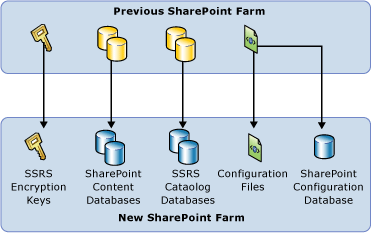
Basic diagram of SSRS SharePoint Migration
ObjectsMethodNotes
1Reporting Services encryption keys.Rskeymgmt.exe or Reporting Services Configuration Manager. See Back Up and Restore Reporting Services Encryption Keys.The noted tools can used for the backup but for the restore operation you will use the Reporting Services service application management pages or PowerShell.
2SharePoint content databases.Backup the database and detach it.

See the section "Database attach upgrade " in Determine upgrade approach (SharePoint Server 2010) (https://technet.microsoft.com/library/cc263447.aspx).
3SQL Server database that is the Reporting Servicescatalog database.SQL Server database backup and restore

or

SQL Server database detach and attach.
4Reporting Services configuration files.Simple file copy.You only need to copy rsreportserver.config if you have made customizations to the file. Example of the default location of the files: C:\Program Files\Common Files\Microsoft Shared\Web Server Extensions\15\WebServices\Reporting\*:


Rsreportserver.config

Rssvrpolicy.config

Web.config for the Report Server ASP.NET application.

Machine.config for ASP.NET.

Restore Operations

This section describes the types of information you need to migrate and the tools or process you use to complete the restore. The tools you use for restoring may be different than the tools you used for the backup.
Before you complete the restore steps, you need to install and configuring the new SharePoint Farm and Reporting Services SharePoint mode. For more information on a basic installation of Reporting Services SharePoint mode, see Install Reporting Services SharePoint Mode.
ObjectsMethodNotes
1Restore SharePoint Content databases to the new farm.SharePoint "Database attach upgrade" Method.Basic Steps:

1) Restore the database on the new server.

2) Attach the content database to a web application by indicating the URL.

3) Get-SPWebapplication lists all web applications and the URLs.


See the section "Database attach upgrade " in Determine upgrade approach (SharePoint Server 2010) (https://technet.microsoft.com/library/cc263447.aspx)and Attach databases and upgrade to SharePoint Server 2010 (https://technet.microsoft.com/library/cc263299.aspx).
2Restore the SQL Server database that is the Reporting Services catalog database (ReportServer).SQL Database backup and restore.

or

SQL Server database attached and detach.
The first time the database is used, Reporting Services will update the database schema as needed so it will work with the SQL Server 2016 environment.
3Create a new Reporting Services service application.Create a new Reporting Services service application.When you create the new service application, configure it to use the report server database you copied over.

For more information on using SharePoint Central Administration, see the "Step 3: Create a Reporting Services Service Application" section in Install The First Report Server in SharePoint Mode.

For examples using PowerShell, see the section "To create a Reporting Services Service Application using PowerShell" in Reporting Services SharePoint Service and Service Applications.
4Restore Reporting Services configuration files.Simple file copy.Example of the default location of the files: C:\Program Files\Common Files\Microsoft Shared\Web Server Extensions\15\WebServices\Reporting.
5Restore the Reporting Servicesencryption keys.Restore the key back up file using the Reporting Services Service Application "SystemSettings" page.

or

PowerShell.
See the section "Key Management" in the topic Manage a Reporting Services SharePoint Service Application.

Migrate from a SQL Server 2012 or SQL Server 2014 Deployment

In a multi-server farm, users will likely have the Content and Catalog databases on a different machine, in which case you really just need to add a new server with the Reporting Services service installed, to the SharePoint farm and then remove the old server. There should be no need to copy databases.

Backup Operations

  1. Backup the Reporting Services encryption keys.
  2. Backup the Reporting Services Service application in SharePoint central Administration (or use PowerShell). This will also backup the service application databases in SharePoint. See topicBackup and Restore Reporting Services SharePoint Service Applications
  3. If you have an Unattended Execution account (UEA) and windows authentication, make a note of the credentials so you can use them for the restore process.

Restore Operations

  1. Restore the Reporting Services service application using SharePoint Central Administration. You could also use PowerShell.
  2. Restore Reporting Services encryption keys.
    See the section "Key Management" in the topic Manage a Reporting Services SharePoint Service Application
  3. Configure the UEA and windows credentials on the service application.