APPLIES TO: 
SQL Server Reporting Services (2016)

Power BI Report Server
SQL Server Reporting Services (2017)
SharePoint
A common reason you complete a migration is when you want to upgrade your SharePoint 2010 deployment to SharePoint 2013/2016. SharePoint 2013/2016 does not support in-place upgrade from SharePoint 2010 and you must complete the procedure of database-attach upgrade or a content only migration.
For more information on upgrading SharePoint 2013/2016, see the following:
Migrate from Reporting Services SharePoint mode versions prior to SQL Server 2012
The Reporting Services SharePoint mode architecture changed in SQL Server 2012 (11.x), including the service application database schema. If you want to migrate to SQL Server 2016 Reporting Services or later (SSRS) SharePoint mode from a version prior to SQL Server 2012 (11.x), first create the new SharePoint environment by installing SharePoint and SQL Server 2016 Reporting Services SharePoint mode. For more information, see
Install Reporting Services SharePoint Mode.
Once the new SharePoint environment is running, you can choose between a content only migration or a full migration at the database level that includes content databases.
Content Only Migration
Reporting Services Content only migration: If you want to copy the Reporting Services content to a new farm, then you need to use tools such as rs.exe to copy the content to the new SharePoint installation. For more information on content only migrations, see the following:
Full Migration
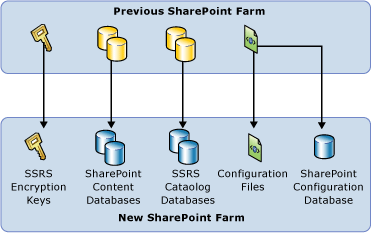
Full Migration: If you are migrating SharePoint content databases along with the Reporting Services catalog databases to a new farm you can follow a series of backup and restore options summarized in this topic. In some cases you will need to use a different tool for the restore phase than you used for the backup phase. For example you can use Reporting Services Configuration Manager to backup encryption keys from a previous version of Reporting Services but you need to use SharePoint Central administration or PowerShell to restore the encryption keys to a SQL Server 2016 Reporting Services SharePoint mode installation.
Databases you will see in the completed migration
The following table describes the SQL Server Databases related to Reporting Services you will have after you successfully migrate your Reporting Services SharePoint installation:
(*) The example names shown in the table follow the naming convention SSRS uses when you create a new SSRS service application. If you are migrating from a different server, your catalog and tempDBs will have the names from the original installation.
Backup operations
This section describes the types of information you need to migrate and the tools or process you use to complete the backup.
Restore Operations
This section describes the types of information you need to migrate and the tools or process you use to complete the restore. The tools you use for restoring may be different than the tools you used for the backup.
Before you complete the restore steps, you need to install and configuring the new SharePoint Farm and Reporting Services SharePoint mode. For more information on a basic installation of Reporting Services SharePoint mode, see
Install Reporting Services SharePoint Mode.
Migrate from a SQL Server 2012 or SQL Server 2014 Deployment
In a multi-server farm, users will likely have the Content and Catalog databases on a different machine, in which case you really just need to add a new server with the Reporting Services service installed, to the SharePoint farm and then remove the old server. There should be no need to copy databases.
Backup Operations
Backup the Reporting Services encryption keys.
-
If you have an Unattended Execution account (UEA) and windows authentication, make a note of the credentials so you can use them for the restore process.
-
Restore Operations
Restore the Reporting Services service application using SharePoint Central Administration. You could also use PowerShell.
Restore Reporting Services encryption keys.
Configure the UEA and windows credentials on the service application.
-